To use a PS1 emulator on iPhone in 2026, download one from the App Store — no jailbreak or sideloading needed. Apple has allowed retro game emulators since 2024, so apps like Gamma, RetroArch, and GamePod Emu install like any other app. You then import backup images of PlayStation discs you own through the Files app and play with touch controls or a Bluetooth controller. GamePod Emu runs PS1 (also listed as PSX or PSOne) alongside 11 other consoles in one library, with save states, auto-save, and support for Xbox, DualShock, and DualSense pads.
Can You Play PS1 Games on an iPhone?
Absolutely — and comfortably. The original PlayStation is a 1994 console, so even several-generations-old iPhones emulate it at full speed. It sits in the sweet spot of iOS emulation: dramatically more capable than 16-bit systems like the SNES, yet nowhere near as demanding as N64, GameCube, or 3DS, where performance genuinely depends on how recent your device is. PS1 games also translate well to a phone: the console's D-pad-and-face-buttons layout maps cleanly onto a touch screen, and analog sticks were optional extras for most of its library.
The one honest caveat is file size. PS1 games shipped on CDs, so disc images run into the hundreds of megabytes each — plan your iPhone storage accordingly if you intend to carry a large collection.
Do You Need a BIOS File for PS1 Emulation on iPhone?
In most cases, no — and this surprises people coming from desktop emulation, where hunting down a BIOS was traditionally step one. The PS1's BIOS is the console's boot firmware, and it is copyrighted by Sony, which is exactly why modern iOS emulators use high-level emulation (HLE) to reproduce what the BIOS does in software. That is how App Store emulators can legally offer PS1 support at all, and it is why searches for a ps1 emulator no BIOS iPhone solution have a simple answer: the mainstream App Store options boot the vast majority of games without any extra system files.
The practical approach: import just your game's disc image and try it. If a specific, unusually picky title misbehaves, that is the moment to consider dumping the BIOS from a PlayStation console you own — never download one, since BIOS files are copyrighted software just like games.
How Do You Switch Discs in Multi-Disc PS1 Games?
Multi-disc PS1 games on iPhone trip up more players than anything else — epics like Final Fantasy VII (three discs), Metal Gear Solid, and Chrono Cross all ask you to "insert disc 2" partway through, and clumsy disc handling is one of the most common complaints in reviews of single-purpose PS1 apps. The good news is there is a reliable method that works in any emulator:
- Import every disc of the game into your library, clearly named (Disc 1, Disc 2, and so on).
- When the game prompts for the next disc, make the in-game save it asks for — this writes to the virtual memory card, which is shared across discs.
- Launch the next disc image from your library and load that save. The game continues exactly where it left off.
Because save data lives with the emulator rather than a physical memory card, your progress carries across disc images automatically. Save states add a second safety net: snapshot before the disc-change screen and you can never lose your place.
Best PS1 Emulator for iOS: Gamma, Delta, or Something Else?
Three names dominate this conversation, and they are not interchangeable:
- Gamma — the app most people find first, since it launched right when Apple opened the door in May 2024. It handles PS1 well, but it is a single-console app, and its free tier is heavily ad-supported — reviewers consistently cite interruptions between sessions. If you are hunting for a Gamma emulator alternative, ads and PS1-only scope are usually the reasons why.
- Delta — excellent, but it does not play PS1 at all. Delta focuses on Nintendo systems, so it simply is not a PlayStation emulator for iOS.
- GamePod Emu — runs PS1 plus 11 more systems (GB, GBC, GBA, NES, SNES, N64, PSP, DS, Sega Genesis, GameCube, 3DS) in one library with cover art, save states, and controller support. The download is free; some systems and features are part of an optional Pro purchase. It holds 4.7 stars across 7,300+ App Store ratings.
If PS1 is the only console you will ever emulate, Gamma is serviceable. If your shelf also holds SNES carts, a PSP, or GameCube discs, one consolidated app beats juggling three — see our full best game emulator for iPhone comparison for the long version.

How Do I Rip My Own PS1 Discs Legally?
PS1 games are ordinary CDs, so any computer with a CD or DVD drive can back them up — an external USB drive costs little if your machine lacks one. Free disc-imaging tools on Windows and macOS read the disc and produce an image, most commonly a .bin file (the data) paired with a .cue file (the track layout). Keep the two together with matching names; a .bin without its .cue is a frequent cause of games failing to load. Some tools can also produce a compressed .chd file, which saves meaningful storage on multi-hundred-megabyte disc images.
Ripping discs you bought is the clean route: you own the game, the backup is for your own use, and no downloading is involved. Downloading games you never purchased is copyright infringement in most jurisdictions, no matter how old the game is — our emulator legality guide covers where the lines sit.
How to Play PS1 Games on iPhone with GamePod
Here is the full path from disc on a shelf to game on your screen. Once your files are ready, the in-app part takes about two minutes.
- Download GamePod Emu. Get Game Emulator: GamePod Emu free from the App Store (iOS 18.6+, iPhone and iPad).
- Rip your PS1 discs on a computer. Create .bin/.cue backups of discs you legally own, keeping each pair together.
- Move the files to your iPhone. Use iCloud Drive, AirDrop, or a cable to get them into the Files app — our ROM import guide walks through each transfer method.
- Import into GamePod. Pick PlayStation in the console switcher, tap Import, and select your files. Cover art appears in your library automatically.
- Start playing. Tap a game to launch it with the PS1 touch skin, complete with SAVE, LOAD, and TURBO buttons — everything runs offline, and auto-save has your back.
- Pair a controller (optional). Connect an Xbox, DualShock, or DualSense pad in iOS Settings > Bluetooth; a DualShock in particular feels right at home on PS1 games. Details in our controller pairing guide.
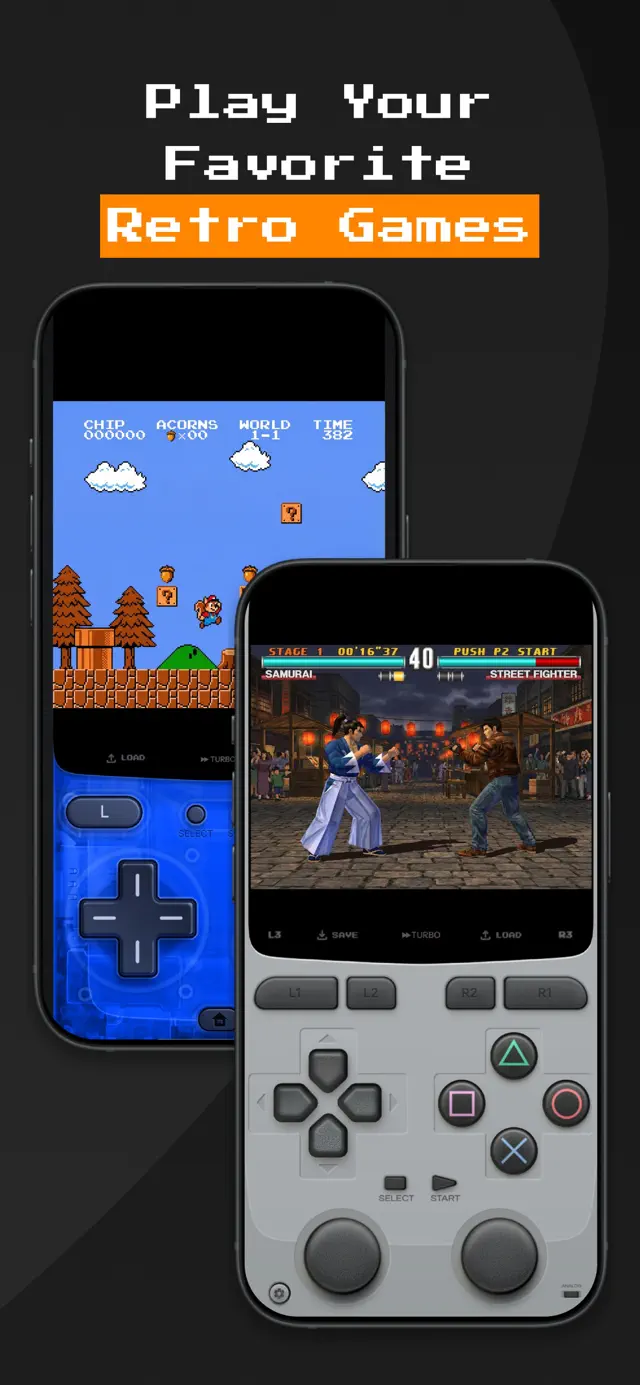
One transparency note: GamePod's free download lets you get started, while an optional Pro unlock covers some systems and extra features — check the app for current details. That model is the trade for an experience that is not wallpapered with ads.