There is now a GameCube emulator for iOS you can install directly from the App Store: Game Emulator: GamePod Emu. It's a free download (with an optional Pro upgrade), supports 12 retro systems including GameCube, and imports your own legally owned game backups through the Files app. No sideloading, no AltStore, no jailbreak, no certificate revocations. Performance depends on your iPhone — GameCube is a demanding system to emulate — but on recent devices it's a real, playable option. Here's exactly what works, what doesn't, and how to set it up.
Can an iPhone emulate GameCube games?
Yes. Modern iPhone chips are dramatically more powerful than the GameCube's 2001-era hardware, and Apple's 2024 rule change allowing retro game emulators on the App Store removed the last policy barrier. So if you searched "can iPhone emulate GameCube" and found older articles saying it's impossible without hacks — that advice is out of date.
The honest caveat: GameCube is one of the three most demanding systems GamePod supports (alongside N64 and 3DS). Raw console specs aren't the whole story — accurate emulation costs far more computing power than the original hardware had. That means results vary by device and by game. Simpler titles run better than effects-heavy ones, and a recent iPhone will always deliver a smoother experience than an older one. It's genuinely playable, not universally flawless — more on device tiers below.
Is there a GameCube emulator on the App Store — no AltStore, no sideloading?
Yes. GamePod Emu is a GameCube emulator on the App Store, reviewed and distributed by Apple like any other app. That matters because until recently the only route to GameCube emulation on iPhone was DolphiniOS, which still has to be sideloaded — meaning AltStore or similar tools, a free certificate that expires every seven days (or a paid developer account), and re-signing rituals whenever something breaks.
A GameCube emulator without sideloading skips all of that. You install GamePod once, it updates automatically through the App Store, and it never gets revoked. If you've been hunting for a GameCube emulator for iPhone as an AltStore alternative, this is the shortest path: search the App Store or use the download link on this page. It's also worth noting what you give up with nothing — there's no jailbreak involved, so your warranty, banking apps, and iOS updates are untouched.
Does Delta emulator play GameCube games?
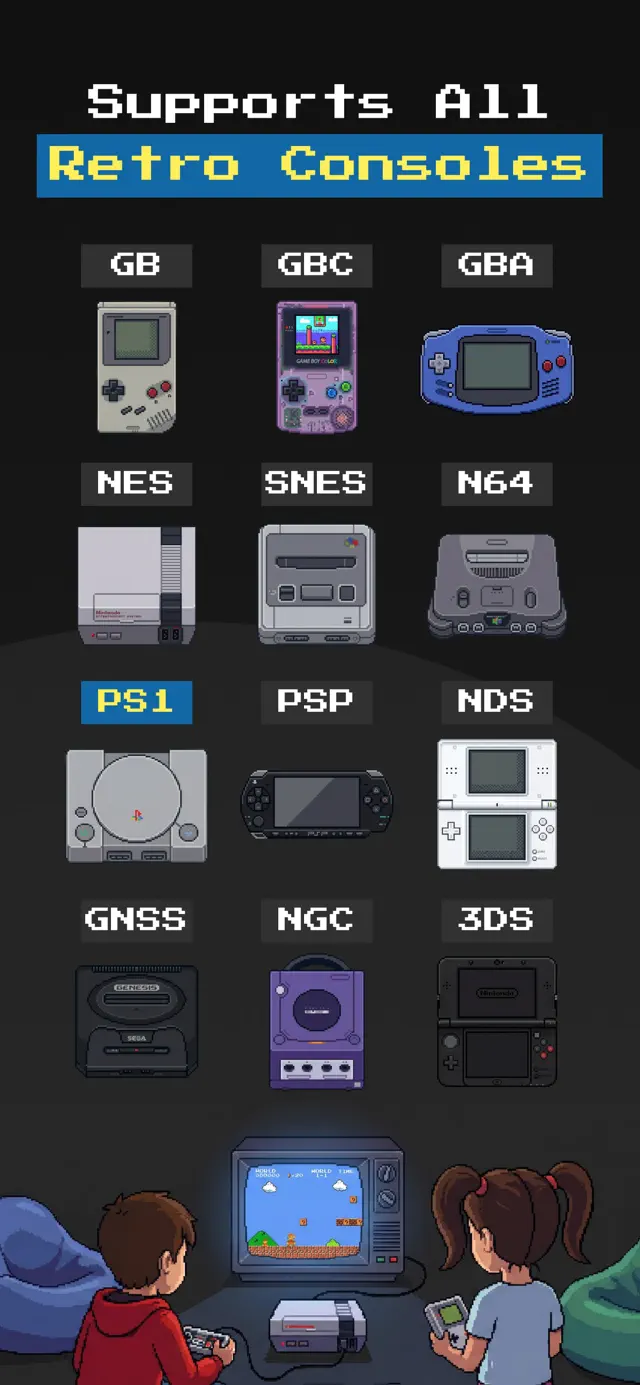
No. Delta is an excellent emulator, but it does not support GameCube. Its lineup covers Nintendo handhelds and older home consoles — NES, SNES, N64, Game Boy lines, and DS. If GameCube is what you're after, Delta can't help, and that's the single biggest reason people end up sideloading DolphiniOS. GamePod covers GameCube from the App Store, plus the systems Delta handles and more: GB, GBC, GBA, NES, SNES, N64, PS1, PSP, DS, Sega Genesis, GameCube, and 3DS — twelve consoles in one app, with one shared game library and save-state system.

Which iPhone models run GameCube games at full speed?
GamePod requires iOS 18.6 or later on iPhone or iPad, so every supported device is reasonably modern. Within that range, think of it as tiers:
- Recent Pro-class iPhones (A17 Pro chip and newer): the best experience. Most GameCube titles are smooth, and these devices have the thermal headroom for longer sessions.
- Recent standard iPhones and iPads: very playable for a wide range of games, with occasional slowdown in effects-heavy scenes.
- Older supported devices: GameCube will run, but expect more frequent dips in demanding games. Lighter 3D titles and 2D-styled games fare best.
Two practical tips regardless of tier: close background apps before long sessions, and use save states liberally — GamePod's SAVE and LOAD buttons plus auto-save mean a slowdown-induced mistake never costs you real progress. And if a particular game struggles on your device, the other eleven consoles in the app (SNES, PS1, GBA, and friends) run effortlessly on anything that can install it.
How do I import my own GameCube game backups?
GamePod ships with no games — you supply backups of GameCube discs you legally own. Import happens through the standard iOS Files app: your backup files can live in iCloud Drive, on-device storage, or any connected cloud provider, and GamePod's import picker reads them from there. Once imported, games appear in your library with cover art, organized under the GameCube tab in the console switcher. Everything then works offline. The full walkthrough (with screenshots and folder tips) is in our ROM import guide, but the short version is in the steps below.
How to play GameCube games on iPhone with GamePod
- Download GamePod Emu free from the App Store. No AltStore, no developer certificates, no jailbreak — it installs like any other app.
- Select GameCube from the console switcher in the game library.
- Import your game backups using the built-in Files app picker — browse to your legally owned GameCube backup files and tap to add them.
- Launch a game from the library. Touch controls appear automatically with a GameCube-style layout, plus TURBO, SAVE, and LOAD buttons on screen.
- Pair a Bluetooth controller (optional but recommended for GameCube): Xbox, DualShock 4, and DualSense controllers all work, giving you real analog sticks and triggers. See our controller setup guide.
- Save anywhere with save states. Auto-save also runs in the background, so a phone call mid-boss-fight won't erase your run.
Note that GamePod is free to download, and some systems and features are part of the optional Pro in-app purchase — check the app for current details before committing to a long play session.
GameCube emulation on iPhone: quick FAQ
Is GamePod's GameCube support free?
GamePod Emu is free to download and use. Some systems and features are part of the optional Pro in-app purchase, so check the current details inside the app before you commit.
Do GameCube games work offline?
Yes. Once your game backups are imported, GamePod runs fully offline — no internet connection is needed to play.
Does GamePod come with any GameCube games?
No. GamePod does not include, host, or distribute any game files. You import backups of GameCube games you legally own through the Files app.
Do I need a jailbreak for GameCube emulation on iPhone?
No. GamePod is a GameCube emulator with no jailbreak required — it installs from the App Store like any other app and updates automatically.