To play PSP games on your iPhone in 2026, download a PSP-capable emulator from the App Store — no jailbreak or sideloading needed — then import backups of PSP games you legally own through the Files app and tap to play. Apple has allowed retro game emulators since 2024, so the whole setup takes about five minutes. GamePod Emu is a free all-in-one option that runs PSP alongside PS1, GBA, Nintendo DS, and eight other consoles, with save states, per-console touch controls, and Bluetooth controller support for Xbox and PlayStation pads.
How Do You Play PSP Games on iPhone Without a Jailbreak?
The same way you install anything else: from the App Store. For years, getting PSP games on iOS meant jailbreaking or fragile sideloading tricks — enterprise certificates that expired, AltStore re-signing every seven days, config profiles that broke with each iOS update. That era is over. Apple changed its App Store guidelines in 2024 to permit retro game emulators, and they have been ordinary, auto-updating App Store apps ever since.
The only real requirements are a reasonably recent device and your own game files. GamePod Emu needs iOS 18.6 or later, runs on iPhone and iPad, and is roughly a 161 MB download. App Store rules do not allow emulators to bundle games, so you supply backups of titles you own — the step-by-step import walkthrough is below. Once your games are in the library, everything plays offline.
Why Is My PSP Emulator Lagging on iPhone (and How Do I Fix It)?
The most common PSP emulator lag fix on iPhone has nothing to do with the app: it is your phone being throttled. PSP emulation demands far more from the processor than Game Boy or SNES emulation, so there is less headroom before frames start dropping. Work through these in order — the first three resolve most cases:
- Turn off Low Power Mode. iOS deliberately slows the CPU to save battery, and PSP emulation feels it immediately. Charge up, or toggle it off in Settings.
- Close background apps and restart. A quick reboot before a long session frees memory that heavy 3D games need.
- Let the phone cool down. Sustained emulation generates heat, and a hot iPhone throttles itself. Take a break, and pull off a thick case if you use one.
- Update iOS and the emulator. Performance fixes ship regularly; an outdated build can be the whole problem.
- Avoid screen recording or streaming while playing. Capture competes for the same processor the emulator needs.
- Accept that some games are simply heavy. A dense 3D open-world title pushes hardware much harder than a 2D platformer or turn-based RPG from the same console.
If one specific game still stutters after all of that, your device may genuinely be at its limit for that title — which brings us to hardware.

Which iPhone Do You Need to Run PSP Games Smoothly?
PSP sits in the middle of the emulation difficulty scale: noticeably heavier than handhelds like GBA and DS, but far lighter than GameCube or 3DS. As a general rule, any iPhone from the last few years handles most of the PSP library comfortably, and the newer the chip, the more consistently demanding 3D games hold their frame rate. Older devices that just clear the iOS 18.6 requirement can still install and play, but expect the heaviest titles to be the first to struggle.
iPads are a pleasant surprise here — recent models have plenty of performance for PSP emulation, plus a much larger screen. And if your device runs PSP well, PS1 emulation will feel effortless by comparison, while truly demanding systems like GameCube on iOS remain the real hardware test.
What Is the Best PSP Emulator for iPhone in 2026?
Honest answer: it depends on what kind of player you are.
- PPSSPP is the long-standing PSP specialist. If PSP is the only system you care about and you enjoy tuning per-game settings, it has earned its reputation.
- RetroArch covers an enormous range of systems, but its interface is famously confusing — expect a learning curve before anything runs.
- GamePod Emu is the all-in-one pick: PSP next to PS1, GBA, SNES, Nintendo DS, and seven more systems in a single pixel-art library with cover art, save states, and one consistent import flow. It holds 4.7 stars from more than 7,300 App Store ratings.
If you want your games running in minutes rather than an evening of settings menus — and your retro collection spans more than one console — the consolidated library is GamePod's whole argument. The download is free, with some systems and extra features behind an optional Pro unlock; check the app for current details. For a broader comparison across every system, see our roundup of the best game emulator for iPhone.
Can You Play PSP Games on iPad with a Controller?
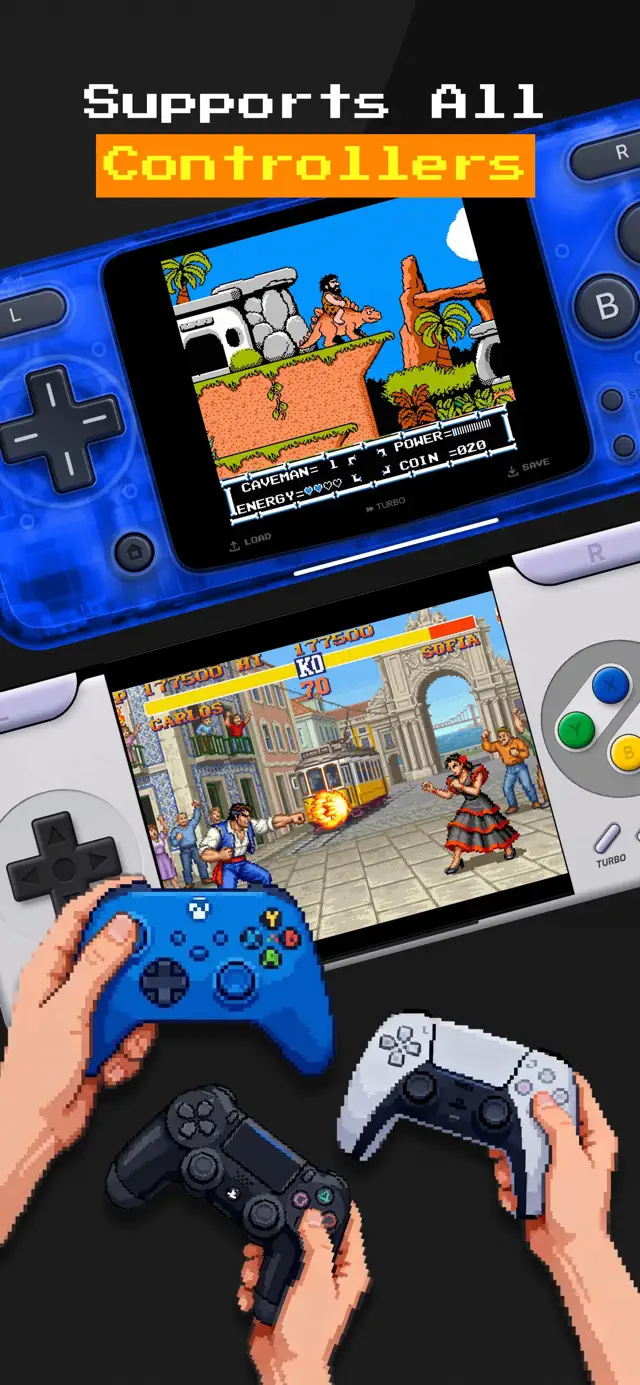
Yes — and a PSP emulator on iPad with a physical pad is arguably the best way to replay this library. The setup is identical to iPhone: same app, same import flow, just a bigger screen. For controllers, pair an Xbox, DualShock 4, or DualSense pad in iOS Settings > Bluetooth once, and GamePod detects it automatically the moment you launch a game. A modern analog stick is a genuine upgrade over the PSP's original nub, especially for shooters and racers.
Touch controls work too: GamePod overlays a PlayStation-style skin with shoulder buttons and haptic feedback, which is fine for menus, RPGs, and slower games. For anything reflex-driven, go physical — our controller pairing guide covers the process button by button.
How to Play PSP Games on iPhone with GamePod
Here is the complete setup, start to finish. The steps are the same on iPad.
- Download GamePod Emu. Get Game Emulator: GamePod Emu free from the App Store (iOS 18.6+, iPhone and iPad).
- Copy your PSP game backups to the Files app. Move backups of PSP games you legally own onto your device via iCloud Drive, AirDrop, or a cable transfer from your computer. Our ROM import guide walks through each transfer method.
- Import your games. Open GamePod, flip the console switcher to PSP, tap Import, and select your files. GamePod adds cover art to your library automatically.
- Start playing. Tap a game to launch it with the PSP touch skin, complete with SAVE, LOAD, and TURBO buttons. Auto-save has your back if a call interrupts, and everything runs offline.
- Pair a controller (optional). Connect an Xbox, DualShock, or DualSense pad in iOS Settings > Bluetooth, and GamePod picks it up as soon as you enter a game.
Two honest caveats before you dive in: performance on the heaviest 3D titles depends on how recent your device is, and while the download is free, some systems and features sit behind GamePod's optional Pro unlock. For the rest of your collection, the same five steps cover all twelve supported consoles.