To play SNES games on an iPhone, install an emulator directly from the App Store — Apple has allowed retro game emulators since April 2024, so the jailbreak advice you may remember is obsolete. Game Emulator: GamePod Emu is a free download that runs both Super Nintendo and NES in one library: import ROM backups of cartridges you legally own through the Files app, pick a game, and play — with save states, turbo mode, and controller support that the original consoles never had.
Can You Play SNES Games on iPhone Without a Jailbreak?
Yes — and this is the single biggest thing older guides get wrong. Search results for "snes emulator ios no jailbreak" are still full of pre-2024 walkthroughs involving AltStore, expiring developer certificates, and re-signing apps every seven days. None of that applies anymore. Since Apple changed its App Store rules, a super nintendo emulator for iPhone installs like any other app: tap Get, wait a few seconds, done. Nothing expires, nothing breaks when iOS updates, and there is no computer in the loop.
That shift matters for safety, too. An emulator from the official App Store passed Apple's review, runs in the normal iOS sandbox, and updates through the store — a very different proposition from the config-profile hacks the old guides recommended.
What Is the Best SNES Emulator for iPhone in 2026?
For most people the best SNES emulator iPhone 2026 offers is whichever real App Store app covers the systems they actually own, keeps getting updates, and supports a physical controller. GamePod Emu makes a strong case: it is a native App Store app rated 4.7 stars across 7,300+ ratings, and SNES and NES are two of the twelve systems it runs — alongside Game Boy, GBC, GBA, N64, DS, 3DS, PS1, PSP, Sega Genesis, and GameCube. If your shelf has more than one console on it, one library beats installing a separate app per system.
Two honest notes. Delta is a polished alternative if you only ever play Nintendo handhelds and home consoles through N64 — credit where due. And while GamePod is free to download, some systems and features sit behind an optional Pro upgrade. For 8-bit and 16-bit emulation specifically, any modern iPhone runs these games at full speed — SNES and NES are the least demanding systems to emulate, so even older devices feel instant.
Does the Same App Play NES Games Too?
Yes. GamePod treats NES as a first-class console with its own tab in the library, so your 8-bit and 16-bit collections live side by side instead of in two different apps. Import a mix of files and each game lands under the right system automatically, with pixel-art cover art, so flicking between an NES platformer and a SNES RPG takes two taps.
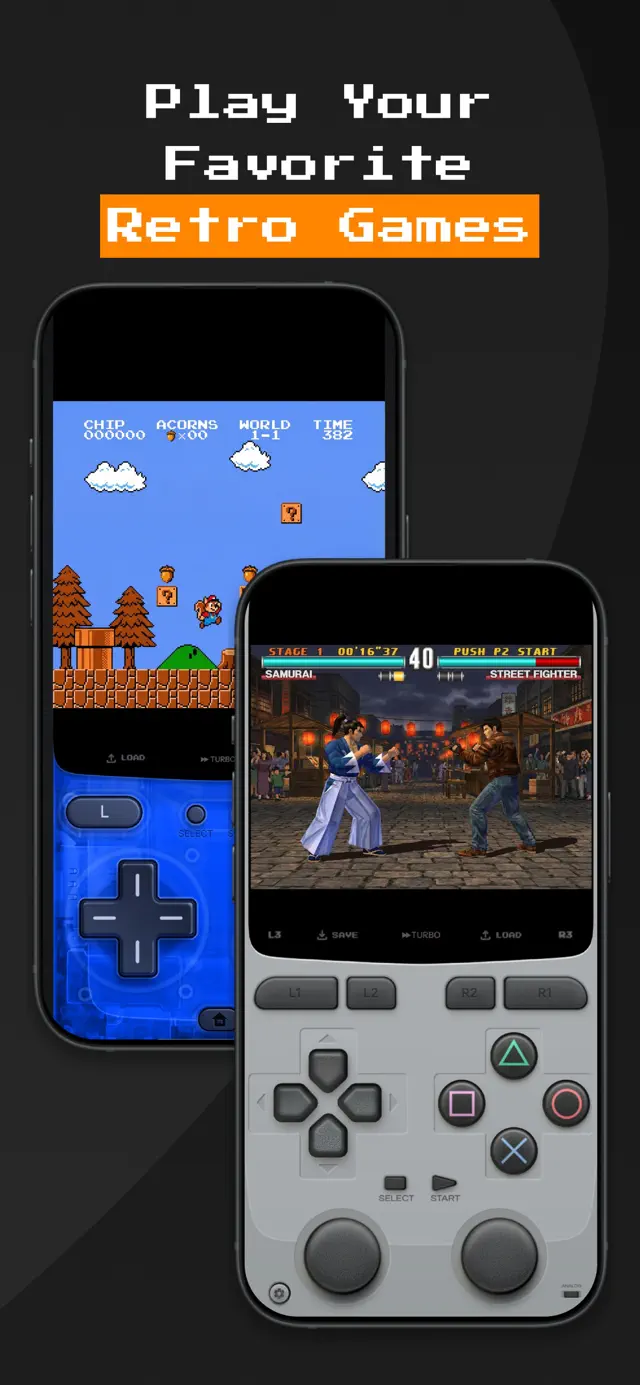
The touch controls adapt per console, too: NES games get a clean two-button retro skin, while SNES layouts add the four face buttons and shoulder buttons the 16-bit era introduced — with haptic feedback so button presses feel physical.

How Do Save States and Turbo Mode Work?
Save states are the feature that changes how these games feel most. The NES era barely had saving — passwords, if you were lucky — and SNES cartridges saved only at fixed points. In GamePod, SAVE and LOAD buttons sit right in the emulation view: tap SAVE at any frame, and LOAD puts you back there instantly. Auto-save adds a safety net on top, so a phone call mid-boss doesn't cost you the run.
TURBO fast-forwards the emulation — genuinely useful for RPG grinding, slow text crawls, and replaying sections you have already mastered. Combined, the two features remove exactly the friction that makes some 90s games feel like homework today, while leaving the actual gameplay untouched.
How Do I Import ROMs of Cartridges I Own?
GamePod ships with zero games — you supply backups of the SNES and NES cartridges you own. In practice: get your ROM files onto the phone via the Files app, iCloud Drive, AirDrop from a Mac, or a USB cable, then tap import inside GamePod and select them. The app detects each game's console, files it under the right tab, and fetches cover art. From cartridge shelf to playable library is usually a one-evening project.
For the full walkthrough — including how cartridge dumping works and which file formats emulators accept — see our step-by-step guide on how to add ROMs to an iPhone emulator.
How to Play SNES and NES Games on iPhone With GamePod
- Install GamePod Emu. Download it free from the App Store (iOS 18.6+, iPhone and iPad).
- Move your ROM backups to your device. Use the Files app, iCloud Drive, AirDrop, or a USB transfer — whichever is closest to hand.
- Import them into GamePod. Tap import, select your SNES and NES files, and watch the library organize itself with cover art.
- Choose your controls. Play on the retro touch skins with haptics, or pair an Xbox / PS5 / PS4 controller over Bluetooth — see the controller setup guide.
- Play, save anywhere, turbo through the slow parts. Your progress persists via save states and auto-save, entirely offline.