Yes — you can run a 3DS emulator on iPhone straight from the App Store, no jailbreak or sideloading required. Apple began allowing retro game emulators in 2024, and in 2026 the easiest route is GamePod Emu: a free download rated 4.7 stars by 7,300+ users that supports Nintendo 3DS alongside 11 other consoles. You import backups of games you legally own through the Files app. The one honest catch: 3DS is among the most demanding systems to emulate, so performance depends on your iPhone — figure an A12 chip as the floor and an iPhone 13 or newer for comfort.
Can iPhone Run 3DS Games?
It can, and the experience has improved a lot since the first wave of 3DS emulators hit iOS. The Nintendo 3DS is a dual-screen handheld with two CPU cores and a dedicated 3D GPU, which makes it far heavier to emulate than a Game Boy Advance or SNES. Modern iPhone chips have more than enough raw power for most of the library — the bottleneck is rarely your phone's capability and more often the rules App Store emulators have to play by (more on that below).
Dual screens also translate surprisingly well to a tall phone display: the top and bottom screens stack naturally in portrait, and on iPad you get generous space for both. Touch-based bottom-screen games work directly, since your screen already is a touchscreen.
What iPhone Do You Need for Smooth 3DS Emulation?
Rough guidance based on how demanding 3DS emulation is on iOS:
- A12 Bionic (iPhone XS/XR, 2018) — the practical minimum. Lighter 2D-heavy titles are playable; ambitious 3D games will struggle.
- A15 (iPhone 13 family) or newer — recommended. Most of the library runs at full speed or close to it.
- A17 Pro / A18 (iPhone 15 Pro and later) — comfortable headroom. The best bet for the heaviest 3D games.
Note that GamePod Emu requires iOS 18.6 or later, which in practice already filters out most hardware too old for 3DS emulation. One more honest caveat: even on a fast phone, a handful of notoriously demanding games may still dip below full speed. That is normal for 3DS emulation on any App Store app, not a defect of one emulator.
Why Do 3DS Games Run Slowly on iPhone Emulators? (The No-JIT Rule)
Desktop emulators get their speed from JIT — just-in-time compilation, which translates the console's code into native instructions on the fly. Apple does not allow third-party App Store apps to use JIT, so every 3DS emulator ios without jailbreak has to fall back on slower interpretation techniques. For simple consoles that overhead is invisible; for the 3DS, which needs to simulate two CPU cores and a GPU every frame, it means your iPhone burns several times more CPU per emulated frame than a JIT-enabled desktop emulator would.
This is why the same game can run perfectly on an old laptop but stutter on a much newer iPhone, and why chip generation matters so much. It is also why no App Store emulator — GamePod, Folium, or anything else — can honestly promise full speed in every game on every device.
Is There a Free 3DS Emulator for iPhone, or Is Folium Worth $4.99?
Folium is a well-regarded dedicated Nintendo handheld emulator on the App Store, but it costs $4.99 up front — you pay before you know how your favorite game runs on your device. If you are looking for a Folium alternative free of that upfront cost, GamePod Emu is the practical pick: it is a free download from the App Store with 3DS support included, so you can test your own games and your own hardware before spending anything. An optional Pro in-app purchase unlocks additional features, but you do not need to pay just to find out whether 3DS emulation works for you.
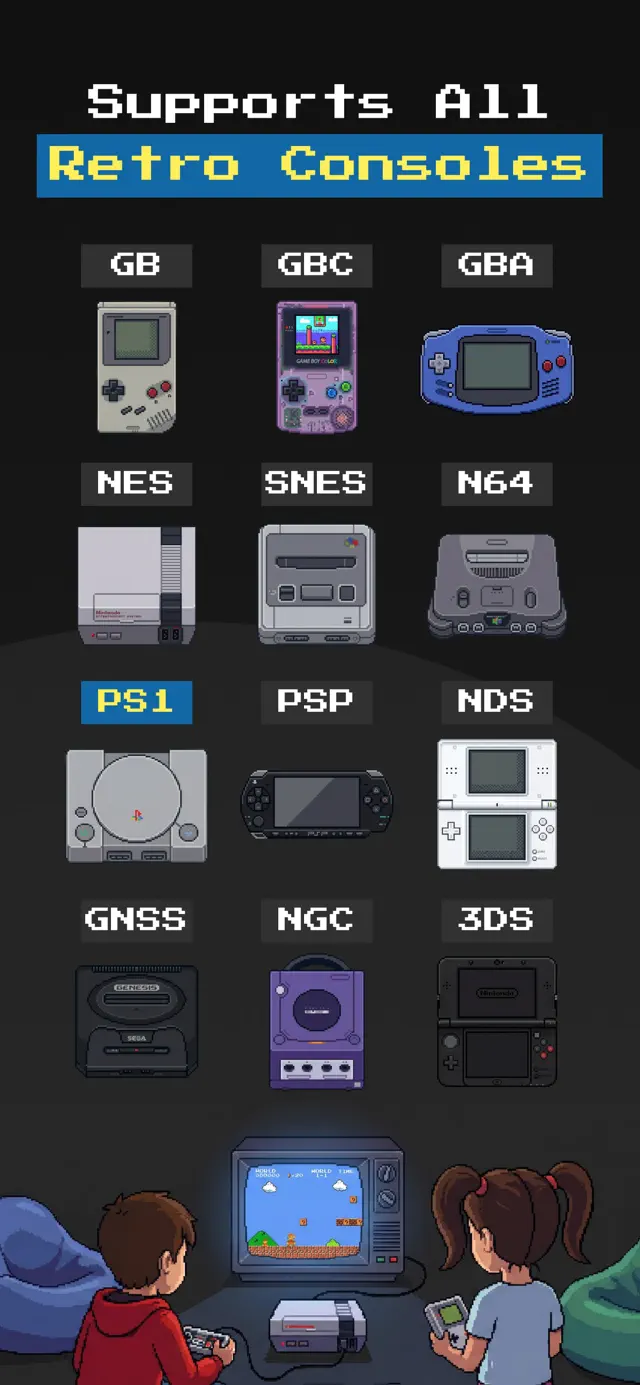
GamePod is also a multi-console app rather than a single-purpose one: the same library handles GBA, DS, SNES, NES, N64, PS1, PSP, Sega Genesis, GameCube, Game Boy, and Game Boy Color, with a console switcher and cover art keeping it all organized.

Does Delta Support 3DS?
No. Delta is a popular free emulator for iPhone, but its console list stops at the Nintendo DS — there is no 3DS core, and the developer has not shipped one as of mid-2026. If 3DS is the system you actually want, Delta is not an option regardless of how good it is at GBA or SNES. Your realistic App Store choices are a paid single-system app like Folium or a free multi-console app like GamePod Emu.
Do You Need a Jailbreak for a 3DS Emulator on iOS?
Not anymore. Before 2024, playing 3DS games on an iPhone meant jailbreaking, sideloading through developer certificates, or juggling constantly revoked enterprise installs. Today a 3DS emulator App Store download is the normal path: reviewed by Apple, sandboxed, and updated like any other app. Skip sideloaded builds from random websites — they lag behind on updates and carry real security risk, and there is no longer any advantage to them for 3DS.
How to Play 3DS Games on iPhone with GamePod Emu
- Install GamePod Emu. Download Game Emulator: GamePod Emu free from the App Store. It needs iOS 18.6 or later and works on iPhone and iPad (~161 MB).
- Back up your own 3DS games. Create backup files from cartridges you legally own and save them to iCloud Drive or On My iPhone. GamePod ships with no games and never will.
- Import through the Files app. Open GamePod, tap Import, and select your backups. They land in your library with cover art automatically.
- Switch to 3DS and play. Use the console switcher to filter to 3DS, tap a game, and play with the touch controller skin designed for dual-screen layouts.
- Tune the experience. Pair an Xbox, DualShock, or DualSense controller over Bluetooth for physical buttons, and lean on save states — the in-game SAVE and LOAD buttons plus auto-save mean a crash or a phone call never costs you progress.
If you get stuck on step two or three, our ROM import walkthrough covers the Files app flow in detail.