To play Nintendo 64 games on an iPhone, install an N64 emulator directly from the App Store — no jailbreak or sideloading needed since Apple opened the door to emulators in 2024. Game Emulator: GamePod Emu is a free download that runs N64 alongside 11 other consoles: import a ROM backup of a game you legally own through the Files app, pick it from your library, and play. Because N64 games were designed around an analog stick, pairing an Xbox, DualShock, or DualSense controller over Bluetooth makes the single biggest difference to how they feel.
How Do I Play N64 Games on My iPhone?
The honest answer in 2026 is much simpler than most older guides suggest. A lot of ranking content still walks you through AltStore, developer certificates, and seven-day app re-signing — that whole era is over. Today, how to play N64 games on iPhone comes down to three steps: install an emulator from the App Store, import your own ROM files through the Files app, and press play. There is nothing to sideload, nothing that expires, and nothing that breaks when iOS updates.
GamePod Emu handles the N64 side with a dedicated console tab in its library, per-console touch controls, auto-save, and manual save states, so you can suspend a game mid-level and pick it up later — something the original cartridge era never allowed.
What Is the Best N64 Emulator for iOS in 2026?
When people search for the best N64 emulator iOS 2026 has to offer, they are usually weighing three things: is it a real App Store app, does it support physical controllers, and is it still being updated. GamePod Emu checks those boxes. It is a native App Store app rated 4.7 stars across 7,300+ ratings, it supports Xbox and PlayStation controllers out of the box, and it covers 12 systems in one library — N64, SNES, NES, Game Boy, GBC, GBA, DS, 3DS, PS1, PSP, Sega Genesis, and GameCube.
Two honest caveats. First, the app is free to download, but some consoles and features sit behind an optional Pro upgrade. Second, no emulator makes N64 effortless on every device — it is one of the more demanding systems to emulate, and results depend on your iPhone (more on that below). What you get either way: save states, offline play, haptic feedback, and a retro pixel-art interface that treats your collection like a library instead of a file list.
How Do You Handle the N64 Analog Stick With Touch Controls?
This is the real N64-specific problem, and it deserves a straight answer. The Nintendo 64 controller was built around a center analog stick, and games like 3D platformers and racers expect fine, gradual stick input. A glass screen can approximate that — GamePod gives you a virtual analog stick on its N64 touch skin, with haptic feedback so your thumb gets some sense of position — but touch works best for forgiving genres. Slower adventure games, turn-based titles, and party games are perfectly playable on touch alone.
For precision platforming or racing, the honest advice is: connect a physical controller. A real analog stick transforms N64 emulation from "impressive tech demo" into something that genuinely feels like the console. GamePod's TURBO button also helps on touch, letting you fast-forward through slow walking sections or unskippable dialogue, and save states mean a slip of the thumb never costs you a whole level.

Can I Use an Xbox or PS5 Controller for N64 Games?
Yes. N64 emulator iOS controller support is one of GamePod's strongest features: Xbox controllers, the DualShock 4, and the PS5 DualSense all pair over standard Bluetooth. Put the controller in pairing mode, connect it in iOS Settings under Bluetooth, and GamePod picks it up automatically — the touch overlay steps aside and the game responds to the physical stick and buttons.
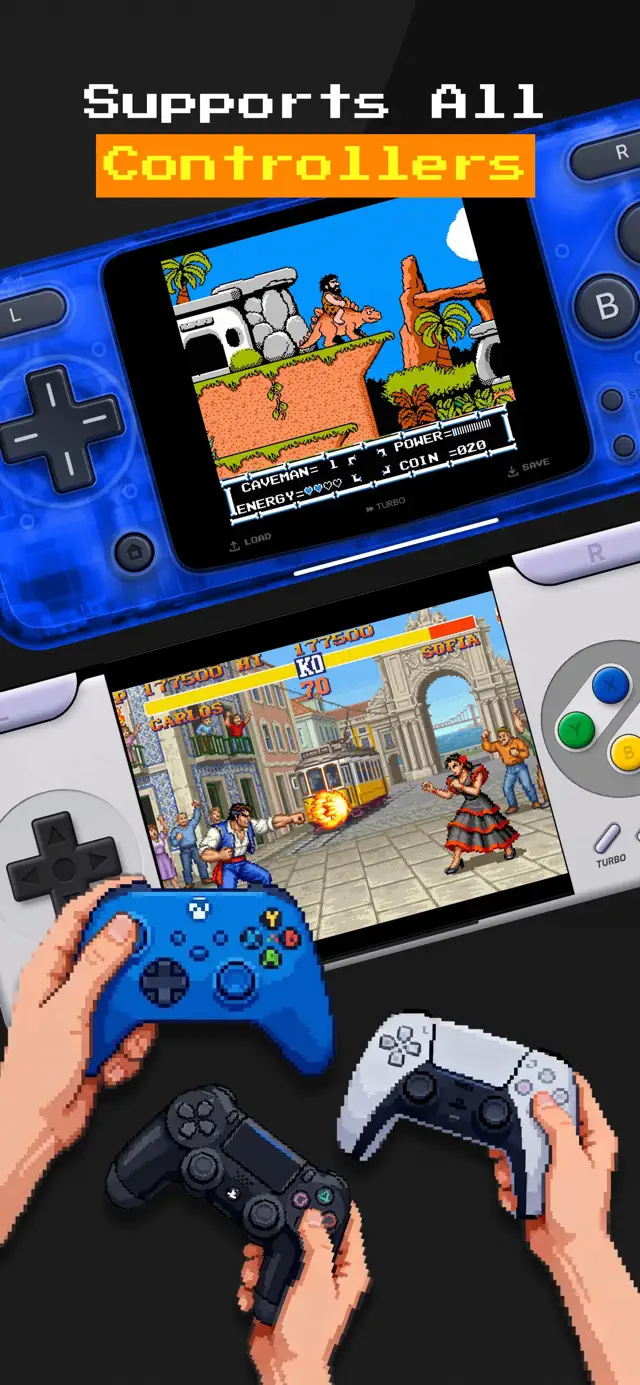
Modern pads actually map to the N64 layout comfortably: the left stick covers the N64 analog stick, and the C-buttons — which many touch layouts struggle with — fall naturally onto the right stick or face buttons. If you want a deeper walkthrough of pairing, button behavior, and troubleshooting, see our iPhone emulator controller guide.
Do N64 Games Run Full Speed on iPhone?
Most do on recent hardware, but this is where honesty matters. The N64 is a genuinely demanding system to emulate — more than SNES or GBA by a wide margin — and performance depends on your device. On newer iPhones running iOS 18.6 or later, the bulk of the N64 library runs at full speed. Notoriously heavy titles can still dip on older devices, just as they can in demanding systems like GameCube and 3DS.
A few practical tips: close background apps before a session, avoid Low Power Mode while playing, and lean on auto-save so an interruption never costs progress. GamePod plays fully offline, so performance is consistent whether you are on a plane or on Wi-Fi. If a specific game struggles on your device, the same library gives you 11 other consoles' worth of games on iPhone to fall back on — SNES and PS1 titles run comfortably on far more hardware.
How to Play N64 Games on iPhone With GamePod Emu
Here is the full setup, start to finish. It takes about ten minutes the first time and seconds after that.
- Install GamePod Emu. Download Game Emulator: GamePod Emu free from the App Store. It needs iOS 18.6 or later and runs on iPhone and iPad.
- Move your N64 ROM to your device. Copy a backup of a game you legally own into the Files app — iCloud Drive, AirDrop, or a USB transfer from your computer all work. Our ROM import guide covers each route in detail.
- Import the ROM into GamePod. Open the app, tap import, and select your N64 file. It appears in your library with cover art, sorted under the N64 tab in the console switcher.
- Pair a controller (recommended). In iOS Settings, open Bluetooth and connect your Xbox, DualShock 4, or DualSense pad. GamePod detects it automatically the moment you launch a game.
- Play, save, and load anywhere. Tap the game to start. Use the SAVE and LOAD buttons for instant save states, and TURBO when you want to speed through the slow parts.