The All-in-One Retro Game Emulator for iPhone, iPad & Android
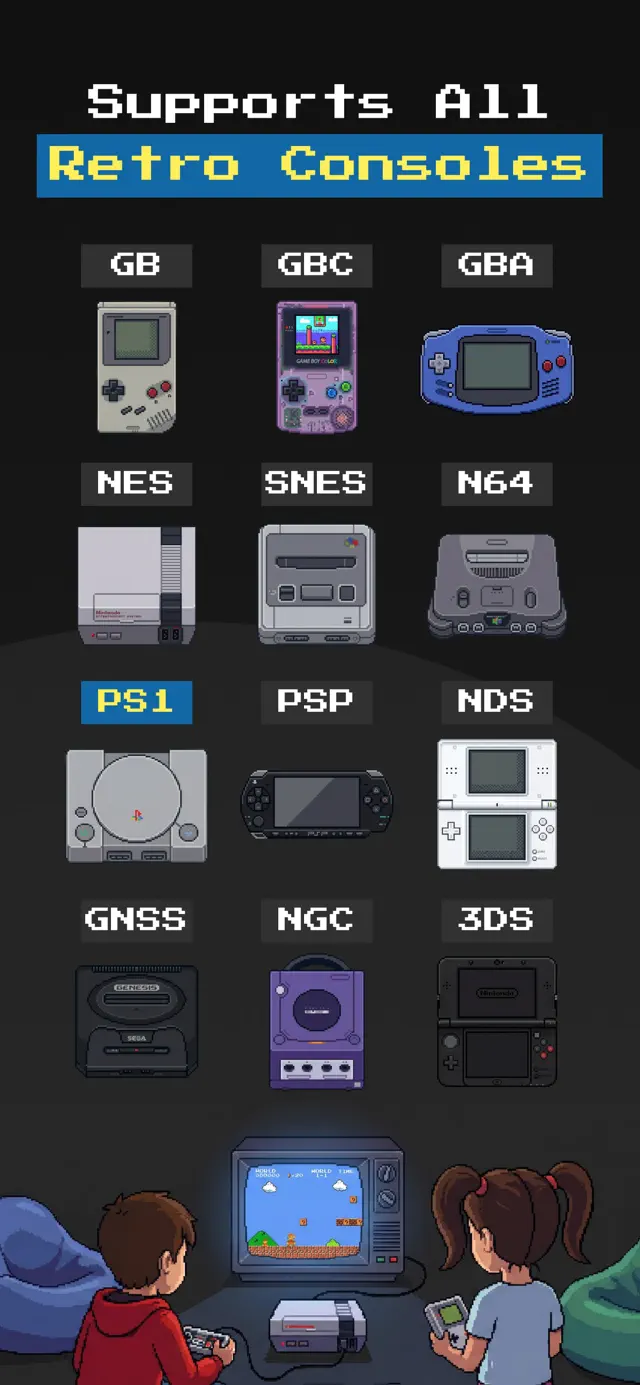
12 consoles, one app: Game Boy, GBC, GBA, NES, SNES, N64, PS1, PSP, Nintendo DS, 3DS, Sega Genesis & GameCube. Import the games you own, save anywhere, play with a real controller — free on the App Store and Google Play, no jailbreak, root or sideloading.


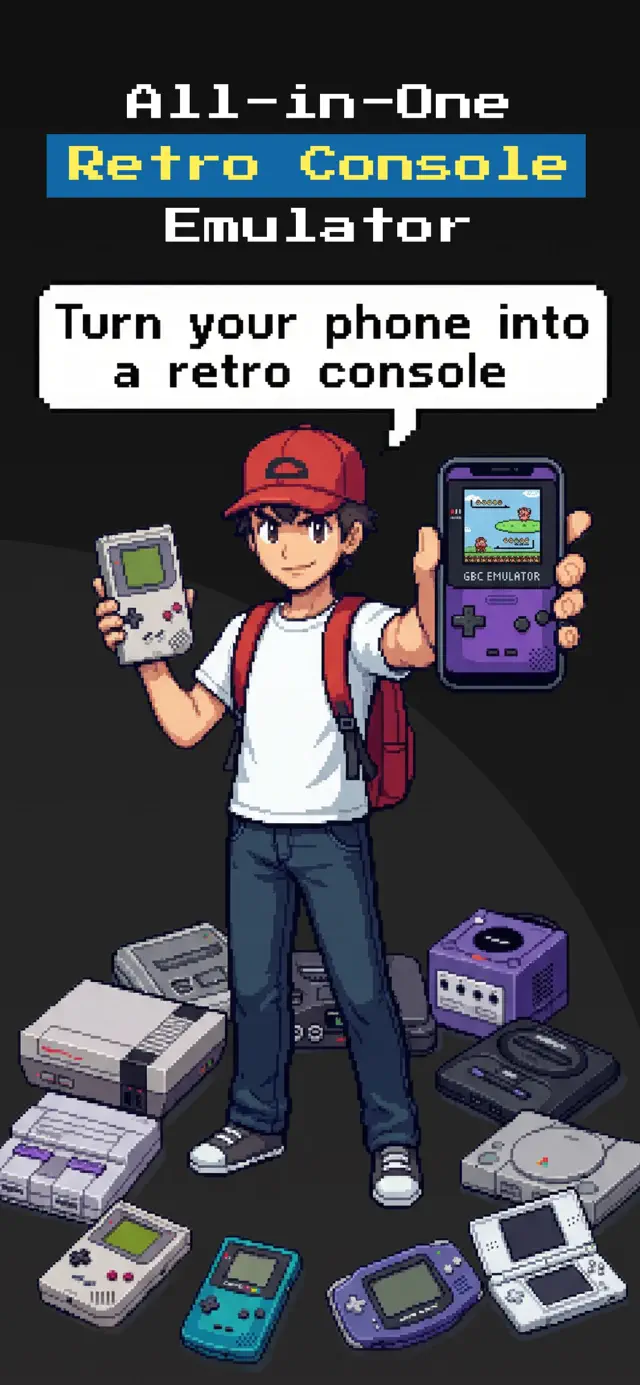
Your whole retro collection. One game emulator app.
Most phone emulators cover one or two systems. GamePod is a multi console emulator for iOS and Android that puts your entire library — handhelds, home consoles and PlayStation classics — behind a single pixel-perfect launcher.
12 consoles in one app
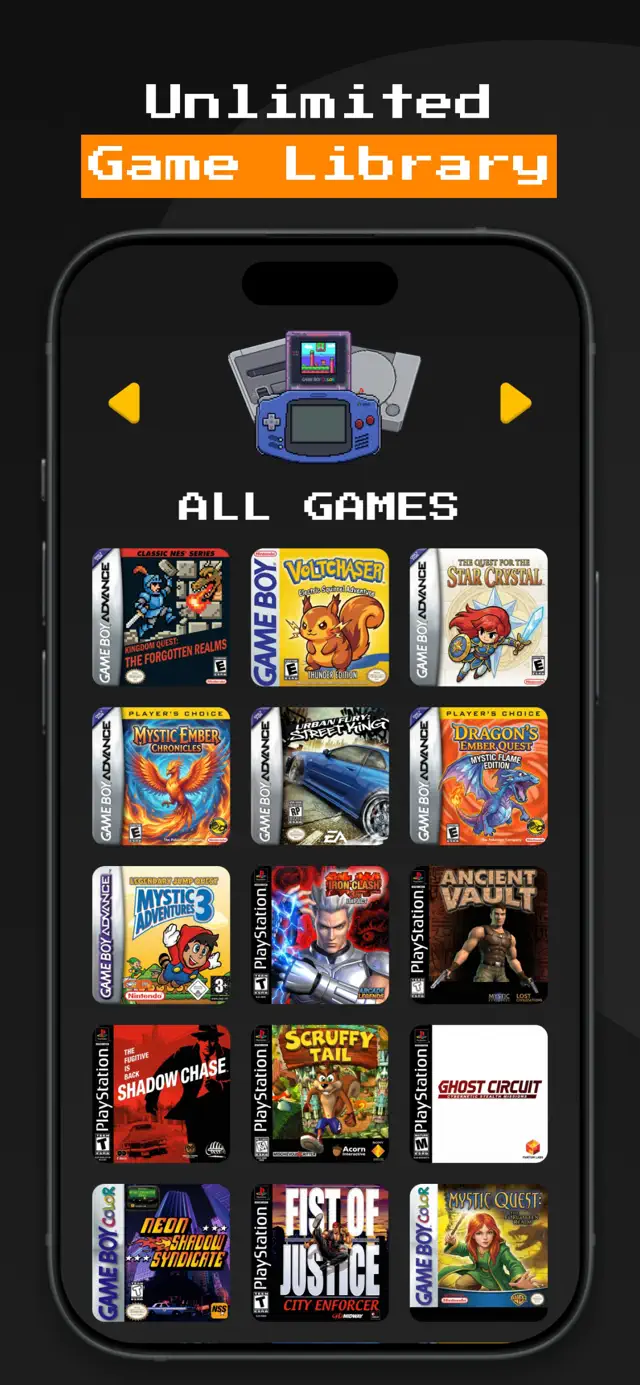
From 8-bit NES to GameCube and 3DS — including the systems most emulator apps skip. No juggling five different apps.
Save states & auto-save
Save anywhere, load instantly, and let auto-save protect your progress — even in games that never had a save feature.
Real controller support
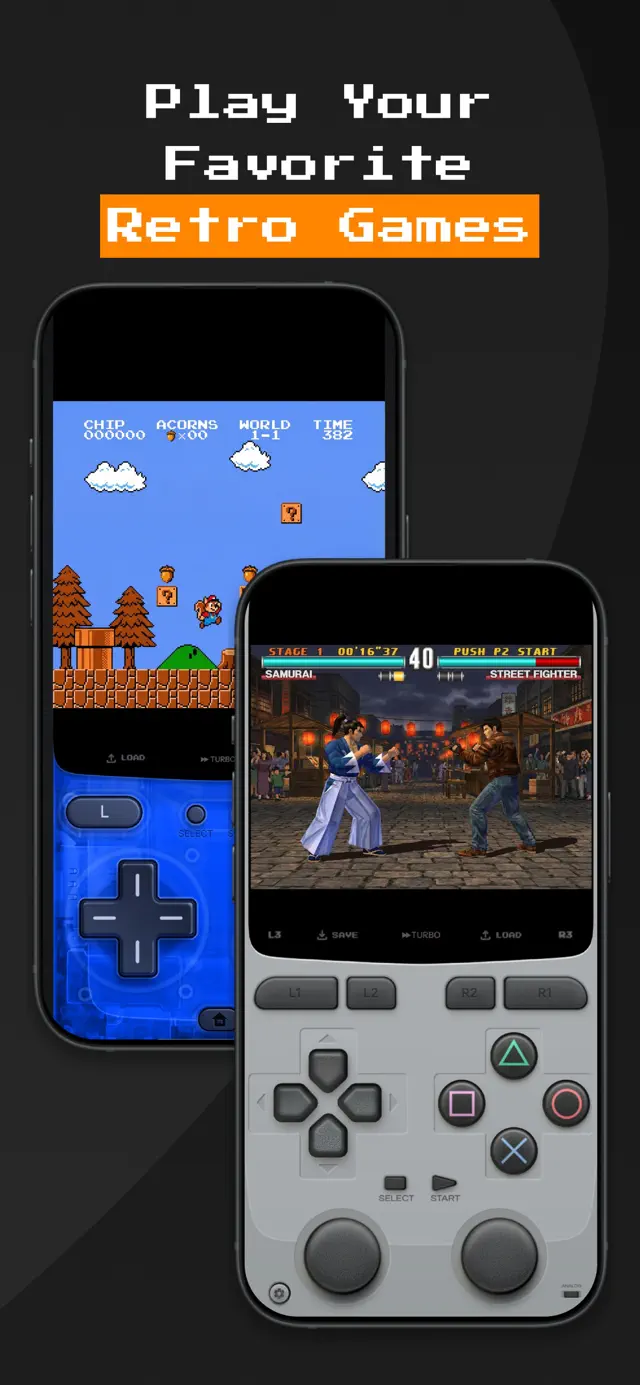
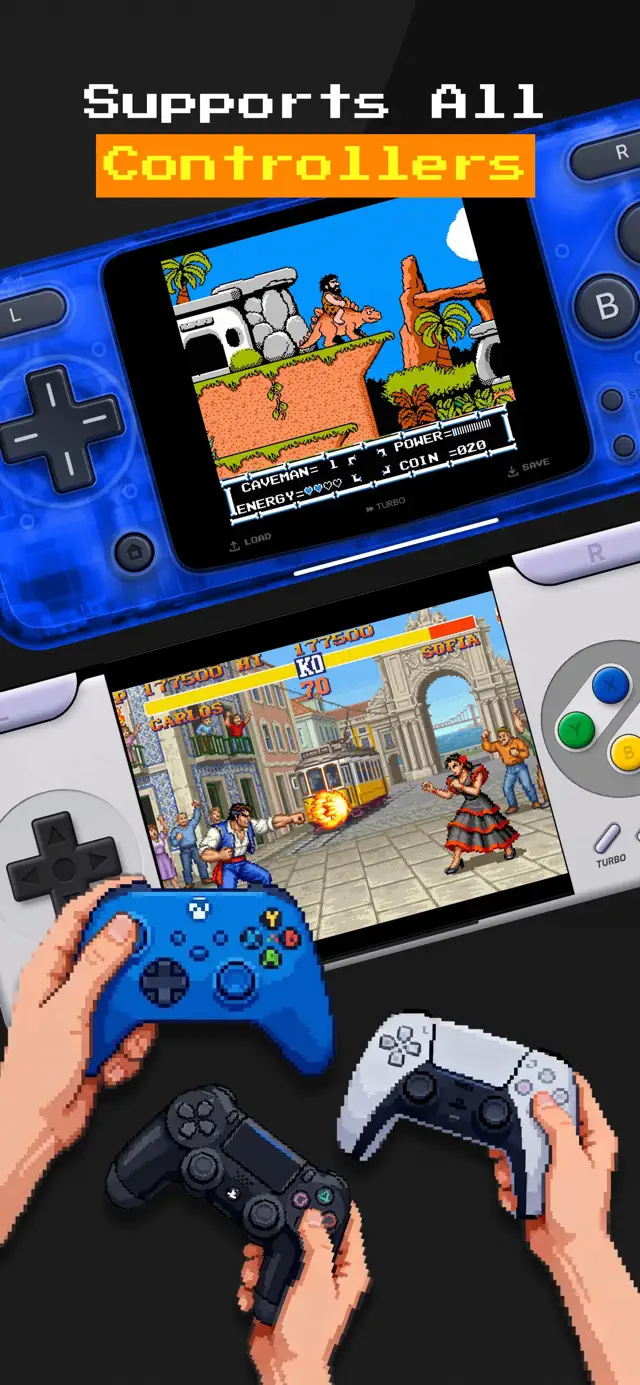
Pair an Xbox, PS5 or PS4 controller over Bluetooth, or use per-console touch skins with haptic feedback.
A library that feels alive
Your imported games get pixel-art cover art, organized per console with a retro carousel switcher.
Plays offline
No connection needed after setup. Perfect for flights, commutes, and anywhere your childhood needs a revisit.
Turbo & pixel-perfect video
Fast, stable emulation tuned for modern phones, with turbo mode for grinding and crisp upscaled visuals.
Feels like the 90s. Runs like 2026.
A clean 8-bit-inspired interface wrapped around a fast, modern emulation core.
Playing retro games on your phone takes 4 steps
No jailbreak, no root, no sideloading, no computer required. GamePod does not include game files — you import backups of the games you own.
Download GamePod
Grab it free on the App Store or Google Play like any other app. Works on iPhone, iPad and Android.
Import your games
Add your own legally-owned ROM backups via the Files app, iCloud Drive or AirDrop on iPhone, or your file manager on Android. See the import guide.
Pick your controls
Use retro touch skins with haptics, or pair an Xbox / PS5 controller in minutes. Controller setup guide.
Play & save anywhere
Save states, auto-save and turbo are one tap away. Your progress survives even where the original game had no saves.
Every console you grew up with
Tap a system for the full setup guide.
Everything you need to start playing
Honest, up-to-date guides for every system and every setup question — written by the people who build GamePod.
The Best Game Emulators for iPhone in 2026, Honestly Ranked
Delta, RetroArch, Gamma, PPSSPP, Folium and GamePod compared — consoles, setup, controllers and price.
Read the guide → GameCubeGameCube Emulator for iOS: No Sideloading Required
Yes, your iPhone can run GameCube games — straight from the App Store, no AltStore tricks.
Read the guide → 3DS3DS Emulator for iPhone: Play 3DS Games Free
Which iPhones handle 3DS emulation, why some games slow down, and how to play free.
Read the guide → Game Boy AdvanceGBA Emulator for iPhone: The 2026 Setup Guide
Play your Game Boy, GBC and GBA library on iPhone — no jailbreak, with save states and controllers.
Read the guide → PlayStationPS1 Emulator for iPhone: Play Your PlayStation Classics
Setup, BIOS answers, multi-disc games and the honest Gamma comparison.
Read the guide → PSPHow to Play PSP Games on iPhone & iPad
Import your own PSP backups, fix lag, and pair a controller — the complete 2026 walkthrough.
Read the guide → Nintendo DSNintendo DS Emulator for iPhone: Dual Screens Done Right
How DS dual screens and touch work on one display — no BIOS file hunt required.
Read the guide → Nintendo 64N64 Emulator for iPhone: Best With a Real Controller
Three steps to N64 on iOS, and how to solve the analog-stick problem properly.
Read the guide → SNES + NESSNES & NES Emulator for iPhone: 8-Bit and 16-Bit Classics
Play Super Nintendo and NES on iPhone with save states, turbo mode and retro controller skins.
Read the guide → SetupHow to Add Your Own ROMs to an iPhone Emulator
Files app, iCloud, AirDrop or USB — plus how to legally back up the cartridges and discs you own.
Read the guide → ControllersUse a PS5 or Xbox Controller With iPhone Emulators
Pairing steps for every controller brand, button remapping, and which consoles benefit most.
Read the guide → LegalityAre Emulators Legal on iPhone? The 2026 Answer
Emulator apps are legal and on the App Store — here's exactly where the legal line sits with game files.
Read the guide → Sega GenesisSega Genesis Emulator for iPhone: Play Your Mega Drive Classics
Play Genesis and Mega Drive games on iPhone with save states, turbo and full controller support.
Read the guide → ComparisonThe Best Delta Emulator Alternative in 2026
An honest GamePod vs Delta comparison — which consoles each covers, and when Delta is still the better pick.
Read the guide →Frequently asked questions
Straight answers about game emulators on iPhone and Android — legality, setup, controllers and consoles.
Are emulators legal on iPhone and Android?
Yes — emulator apps are legal: allowed on the App Store since April 2024, and on Google Play for years before that. What matters legally is where your game files come from: playing backups of games you own is the safe path, downloading copyrighted ROMs is not. GamePod ships no games; you import your own. Learn more
How do I add ROMs to an emulator on iPhone or Android?
Import your own game files through the Files app, iCloud Drive or AirDrop on iPhone, or your file manager, Downloads folder or a USB cable on Android — no computer tricks, jailbreak or root needed. In GamePod you tap Import, pick the file, and cover art plus save states are set up automatically. Learn more
Do emulator apps come with games included?
No — emulators like GamePod don't bundle any games, and that's what keeps them legal. You add backups of cartridges and discs you already own, and our guide shows exactly how to import them. Learn more
Can you use an Xbox or PS5 controller with a phone emulator?
Yes — iPhone and Android both pair with Xbox, PS5/PS4 DualSense/DualShock, and Backbone controllers over Bluetooth, and GamePod detects them instantly with per-console button mapping. It takes about two minutes to set up. Learn more
Can a phone emulate GameCube games?
Yes — and you no longer need AltStore or sideloading. GamePod runs GameCube straight from the app stores; newer iPhones (roughly iPhone 12 and up) get the smoothest results. Learn more
Is there a free 3DS emulator for phones?
Yes — GamePod plays 3DS games free, while the best-known alternative costs $4.99 and Delta doesn't support 3DS at all. You'll want an A12 chip or newer, and iPhone 13+ for demanding games. Learn more
Can you play PS1 games on your phone?
Absolutely — PS1 emulation runs full speed on any modern iPhone or Android phone, with save states and multi-disc support for the classics. GamePod plays PS1 plus 11 more consoles in one library. Learn more
Do you need a jailbreak or root to play GBA games on your phone?
Not anymore — that advice is from before 2024. Game Boy Advance emulators are on the official App Store and Google Play now; you download GamePod like any other app, import your GBA files, and play offline. Learn more
What is the best game emulator for iPhone and Android in 2026?
It depends on what you play: Delta is polished for Nintendo handhelds, Gamma covers PS1, PPSSPP covers PSP — but each is limited to a few systems. GamePod is the all-in-one pick with 12 consoles including GameCube and 3DS. Learn more
Does Delta emulator play GameCube or 3DS games?
No — Delta covers NES through N64 and DS, but has no GameCube, 3DS or PSP support. If you want those systems in one app from the official stores, that's exactly the gap GamePod fills. Learn more
Relive. Replay. Rewind.
Your childhood game collection is one download away. Free on the App Store and Google Play — 4.7★ from 7,300+ players.