The best game emulator for iPhone in 2026 depends on what you play. Delta is the most polished choice for Nintendo-only collections; RetroArch is the deepest and the hardest to learn; PPSSPP remains the PSP standard; Gamma is a capable PS1-only app; Folium handles 3DS but costs money upfront. If you want a single app for everything, GamePod Emu covers 12 consoles — including GameCube and 3DS, which Delta does not run — with a free download and an optional Pro unlock. Every app here installs straight from the App Store, no jailbreak or sideloading required.
What Is the Best Game Emulator for iPhone in 2026?
There is no single winner, and anyone who tells you otherwise is selling something. After putting real hours into each app, this is how I would split it:
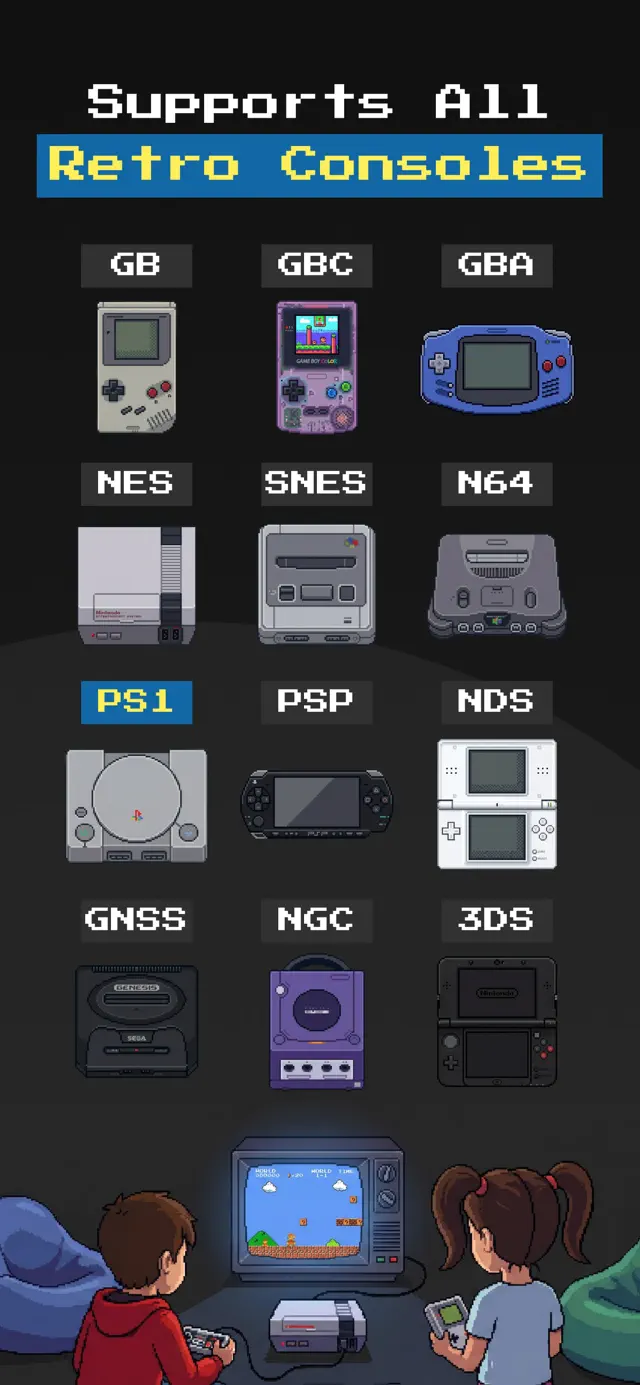
- GamePod Emu — best all in one game emulator for iPhone. Twelve systems (GB, GBC, GBA, NES, SNES, N64, PS1, PSP, DS, Genesis, GameCube, 3DS) in one library with cover art, save states, and controller support. Free download; some systems and features sit behind an optional Pro purchase.
- Delta — best pure-Nintendo experience. Gorgeous, free, and stable, but the console list stops before GameCube and 3DS.
- RetroArch — best for tinkerers who want shaders, per-core options, and dozens of systems, and who can tolerate a famously hostile menu.
- PPSSPP — best dedicated PSP emulator, full stop. Decades of optimization show.
- Gamma — a solid free PS1-only pick, supported by ads.
- Folium — the dedicated 3DS option, paid upfront with cores sold separately.
One honest caveat that applies to every app on this list: App Store rules block the just-in-time (JIT) compilation these emulators use elsewhere, so demanding 3D systems — N64, GameCube, 3DS, and heavier PSP titles — lean hard on raw processor speed. On a recent iPhone they run well; on older devices, expect compromises no matter which app you pick.
Delta vs RetroArch on iOS: Which Is Better?
The delta vs retroarch ios debate is really a question about you, not the apps. Delta wins on experience: import a game and it just works, with beautiful skins, effortless save states, and zero configuration. Its ceiling is scope — the public App Store build is Nintendo-only (NES through N64, the Game Boy line, and DS). Sega Genesis has been sitting in Delta's Patreon-gated 2.0 beta and still hasn't shipped publicly as of mid-2026, and there is no PS1, PSP, GameCube, or 3DS support at all.
RetroArch wins on raw capability. It emulates more systems than anything else on iOS and exposes settings Delta never will: shaders, run-ahead, per-core overrides. But the interface genuinely fights new users — expect to spend your first evening learning what a "core" is instead of playing. My take: Delta if you play, RetroArch if you tinker. If you want RetroArch's breadth with Delta's ease, that middle ground is exactly where GamePod sits.
What Is the Best Delta Alternative for GameCube, 3DS, PS1, and PSP?
The most common reason people hunt for a Delta emulator alternative is simple: Delta does not run GameCube, 3DS, or PSP. If your shelf includes any of those, you need a different app — or several. Folium covers 3DS well, and PPSSPP covers PSP well, but that already means two extra apps with two separate libraries.
GamePod is the one App Store emulator I know that folds all four systems — GameCube, 3DS, PS1, and PSP — into a single library alongside the Nintendo handhelds Delta already does. Full honesty: GameCube and 3DS are the two heaviest systems in emulation, so results scale with your iPhone's chip, and some of GamePod's systems are part of the Pro unlock rather than the free tier. PS1 and PSP, by contrast, run comfortably on most modern devices.

Which Emulator Is Best If You Only Want One App?
If juggling three emulators with three import flows sounds miserable, consolidation becomes the deciding feature. GamePod's whole pitch is being an all in one game emulator for iPhone: a console switcher flips between twelve systems, every game gets cover art in one library, and the same SAVE, LOAD, and TURBO buttons work identically whether you are in an NES platformer or a PS1 fighter. Per-console touch skins, haptics, offline play, and Bluetooth support for Xbox, DualShock 4, and DualSense pads carry across every system too — pair once in iOS Settings and you are set (details in our controller guide). RetroArch technically consolidates more systems, but you pay for it in setup time. For most people, GamePod is the lower-friction way to get everything under one roof.
Which iPhone Emulators Are Actually Free?
"Free" hides a lot of fine print in this category, so here is the plain version. Delta is genuinely free with no ads, funded by its developer's Patreon. RetroArch and PPSSPP are free, open-source projects. Gamma is free but ad-supported. Folium is the outlier: paid upfront, with individual cores as separate purchases. GamePod is a free download — you can import games and start playing without spending anything — but it is not entirely free: some systems and extra features require the optional Pro purchase, which is what funds development instead of ads.
So if you want the best emulator for iPhone free with zero asterisks and only play Nintendo systems, Delta is the honest answer. If you want twelve consoles in one place and would rather pay once than fight RetroArch's menus, GamePod's free tier is the right starting point — you will know quickly whether Pro is worth it for your library.
Gamma vs Delta for PS1: Is Gamma Still the Best?
Let's clear up a persistent rumor first: Delta has no PS1 core — nothing has shipped and nothing has been announced as of mid-2026, so the gamma vs delta ps1 question answers itself. If you want PlayStation emulation from the App Store, Delta is not in the running. Among dedicated apps, Gamma remains the well-known PS1 option, with years of PS1-specific polish and a simple setup — at the cost of the heavy ad load its own reviews complain about.
But the sharper question is whether a PS1-only app makes sense at all in 2026. PlayStation 1 emulation is light work for any recent iPhone, and GamePod runs the same library while also housing your SNES, GBA, and PSP collections. Unless PS1 is literally the only system you play, a single-console app is a hard sell.
How to Set Up GamePod Emu in About Five Minutes
Whichever games you start with, the setup is the same across all twelve systems:
- Download GamePod Emu. Get Game Emulator: GamePod Emu free from the App Store (iOS 18.6+, iPhone and iPad, about 161 MB).
- Move your game backups into the Files app. Use iCloud Drive, AirDrop, or a cable transfer — our ROM import guide covers each method step by step.
- Import your games. Open GamePod, pick a system in the console switcher, tap Import, and select your files. Cover art fills in automatically.
- Play. Tap any game to launch it with that console's touch skin, save states, auto-save, and the TURBO fast-forward button. No internet connection needed.
- Pair a controller (optional). Connect an Xbox, DualShock, or DualSense pad in iOS Settings > Bluetooth, and GamePod picks it up the moment you enter a game.
Start with the free tier, throw a few games at it, and see how your favorite systems run on your device before deciding on Pro. That is the same advice I would give for any app on this list: your iPhone, your library, your call.