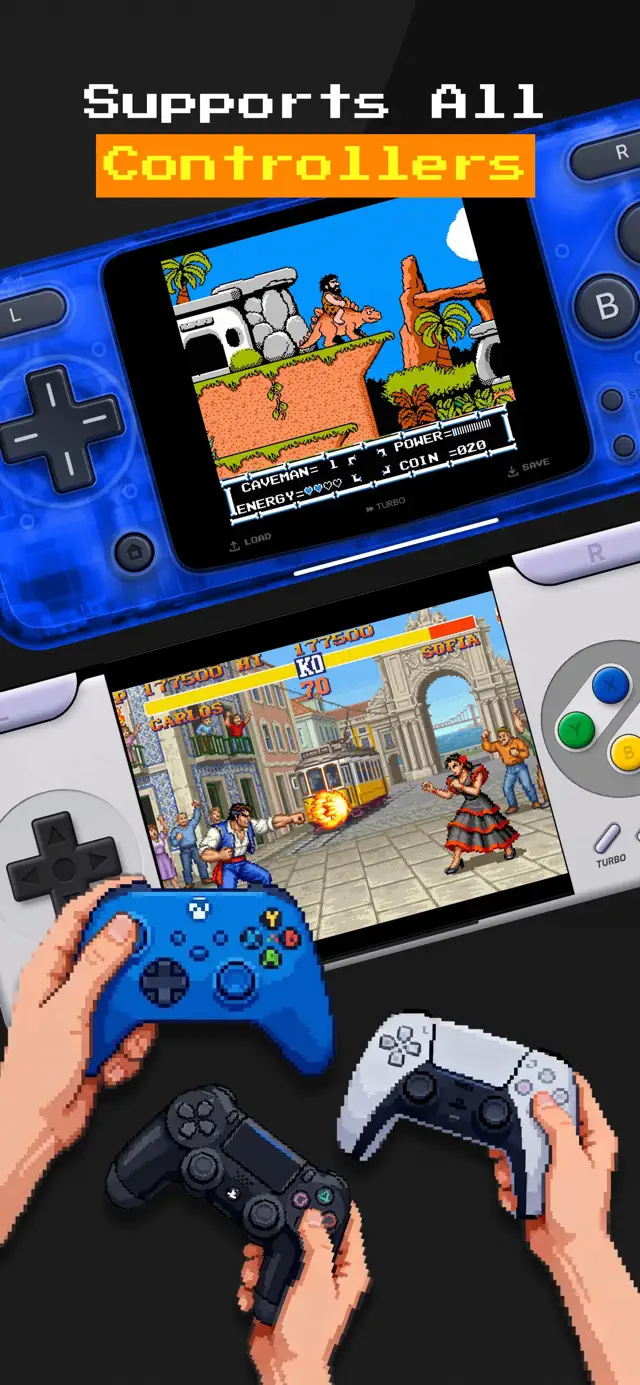
iPhone emulator controller support is built into iOS itself: Xbox Wireless, PS5 DualSense, and PS4 DualShock 4 controllers all pair over standard Bluetooth, and any emulator built on Apple's game controller framework reads them instantly. Put the controller in pairing mode, connect it in Settings → Bluetooth, and open your emulator — the touch overlay steps aside and the physical buttons take over. Game Emulator: GamePod Emu (free on the App Store, 4.7★ across 7,300+ ratings) detects all three controller types automatically and applies a sensible button mapping for each of its 12 consoles.
Can I Use a PS5 or Xbox Controller With an iPhone Emulator?
Yes. Since Apple added native gamepad support to iOS, an Xbox controller and an iPhone emulator work together with no adapters, apps, or workarounds — the pad pairs like a pair of headphones. The same goes for Sony's controllers: the DualSense (PS5) and DualShock 4 (PS4) are both first-class citizens on iOS.
One hardware caveat worth knowing before you dig your old pad out of a drawer: the controller must actually have Bluetooth. Every DualSense and DualShock 4 does, but the earliest Xbox One controllers (the ones with a 3.5mm-jack-free bottom edge and glossy plastic around the Xbox button) shipped without it. Any Xbox controller sold in the last several years — including every Series X|S pad — pairs fine.
GamePod Emu supports Xbox, DualShock 4, and DualSense controllers natively, with haptic feedback and per-console mappings, across everything from Game Boy to GameCube.
How Do I Pair a Bluetooth Controller With My iPhone?
To connect a PS5 controller to an iPhone emulator — or an Xbox pad, the steps only differ at the controller end — you pair it once at the system level and every controller-aware app sees it from then on:
Xbox Wireless Controller: press the Xbox button to power it on, then hold the small Pair button on the top edge until the Xbox logo flashes rapidly.
PS5 DualSense: with the controller off, hold the Create button (top-left) and the PS button together until the light bar flashes blue.
PS4 DualShock 4: hold Share and the PS button together until the light bar strobes white.
Then on your iPhone, open Settings → Bluetooth and tap the controller's name under Other Devices. When it reads Connected, you are done.
If it will not pair: make sure the pad is not silently reconnecting to a console in the same room (unplug or power the console down), charge the controller, and if it previously paired with this iPhone, tap the ⓘ next to its name, choose Forget This Device, and pair fresh. Updating the controller firmware via a PC or console fixes the last stubborn cases.
How Do I Remap Buttons Per Console?
There are two layers, and most people only ever need the first. GamePod applies a per-console mapping automatically: SNES face buttons land where your thumb expects them, PS1 shoulder buttons map straight across, and N64's odd C-button cluster falls onto the right stick — so each system feels right without any setup. The on-screen SAVE, LOAD, and TURBO buttons stay available even while a physical pad is connected, and each console keeps its own touch controller skin for when you play without the pad.
If you want to override a specific button, iOS has a system-wide remapping layer: Settings → General → Game Controller lets you swap any button for any other, globally or per app. It works with every controller iOS supports, so a preference you set there carries into GamePod and any other game.

Which Consoles Benefit Most From a Physical Controller?
Touch controls are genuinely fine for the 8- and 16-bit systems — Game Boy, GBC, GBA, and NES games were built for a D-pad and two buttons, and a glass screen approximates that well. The case for a Bluetooth controller with retro games on iPhone gets stronger the more analog the original console was:
N64 is the clearest win. Its games assume fine, gradual analog-stick input that a flat screen simply cannot reproduce for precision platforming or racing. PS1 fighters and action games benefit hugely from real shoulder buttons and a clicky D-pad. GameCube games lean on two analog sticks at once, which is the one layout touch overlays handle worst. PSP titles, designed around a physical stick and shoulder buttons, also feel far closer to the original hardware on a pad.
An honest note: a controller fixes input, not performance. N64, GameCube, and 3DS are demanding systems to emulate, and how smoothly they run depends on your iPhone, pad or no pad.
Do Backbone-Style Controllers Work With Emulators?
Generally, yes. Grip controllers that clamp around your iPhone and plug into the USB-C or Lightning port — Backbone One being the best-known — register with iOS as standard game controllers, exactly like a Bluetooth pad. That makes Backbone emulator setup the simplest of all: snap the phone in and open the emulator. There is no pairing step, no battery to charge, and no input lag from Bluetooth.
You do not need the Backbone companion app for emulation; it is a launcher and capture layer, not a driver. Since the buttons follow the Xbox-style layout, an emulator's mapping treats a Backbone the way it treats an Xbox pad. The one trade-off versus a full-size controller is ergonomics — compact grips are great for handheld-era systems like GBA, DS, and PSP, while long N64 or GameCube sessions tend to feel better on a full-size pad.
How to Set Up a Controller With GamePod Emu
Here is the whole process end to end. First-time setup takes about five minutes; after that, the controller reconnects on its own whenever you power it on near your phone.
- Install GamePod Emu. Download Game Emulator: GamePod Emu free from the App Store. It requires iOS 18.6 or later and runs on iPhone and iPad. Some systems and features are part of the optional Pro upgrade.
- Put your controller in pairing mode. Xbox: hold the Pair button until the logo flashes. DualSense: hold Create + PS. DualShock 4: hold Share + PS. (Backbone-style grips skip this step entirely — just dock the phone.)
- Connect it in iOS Bluetooth settings. Open Settings → Bluetooth and tap the controller under Other Devices. iOS remembers it for next time.
- Import a game you own. Move a backup of a game you legally own into the Files app and import it into GamePod — it appears in your library with cover art, sorted by console. Our ROM import guide walks through every transfer method.
- Launch the game and play. GamePod detects the controller automatically, applies the right mapping for that console, and clears the touch overlay off the screen. SAVE, LOAD, and TURBO remain a tap away, and haptic feedback works whether you are on glass or on the pad.