To run a GBA emulator on iPhone in 2026, you simply download one from the App Store — no jailbreak, no sideloading, no AltStore workarounds. Apple began allowing retro game emulators in 2024, so apps like GamePod Emu, Delta, and RetroArch now install like any other app. From there, you import backups of Game Boy Advance cartridges you own through the Files app and play with touch controls or a Bluetooth controller. GamePod Emu covers Game Boy, Game Boy Color, and GBA in one library, with save states, a turbo button, and full controller support.
What Is the Best GBA Emulator for iPhone?
If you are looking for the best GBA emulator for iOS in 2026, three App Store apps stand out, and the honest answer is that each suits a different player:
- Delta — a polished, free emulator focused on Nintendo systems. Great if you only ever want Nintendo handhelds and consoles.
- RetroArch — extremely powerful and covers a huge range of systems, but its menu system is famously confusing for first-time users. Expect a learning curve before you play anything.
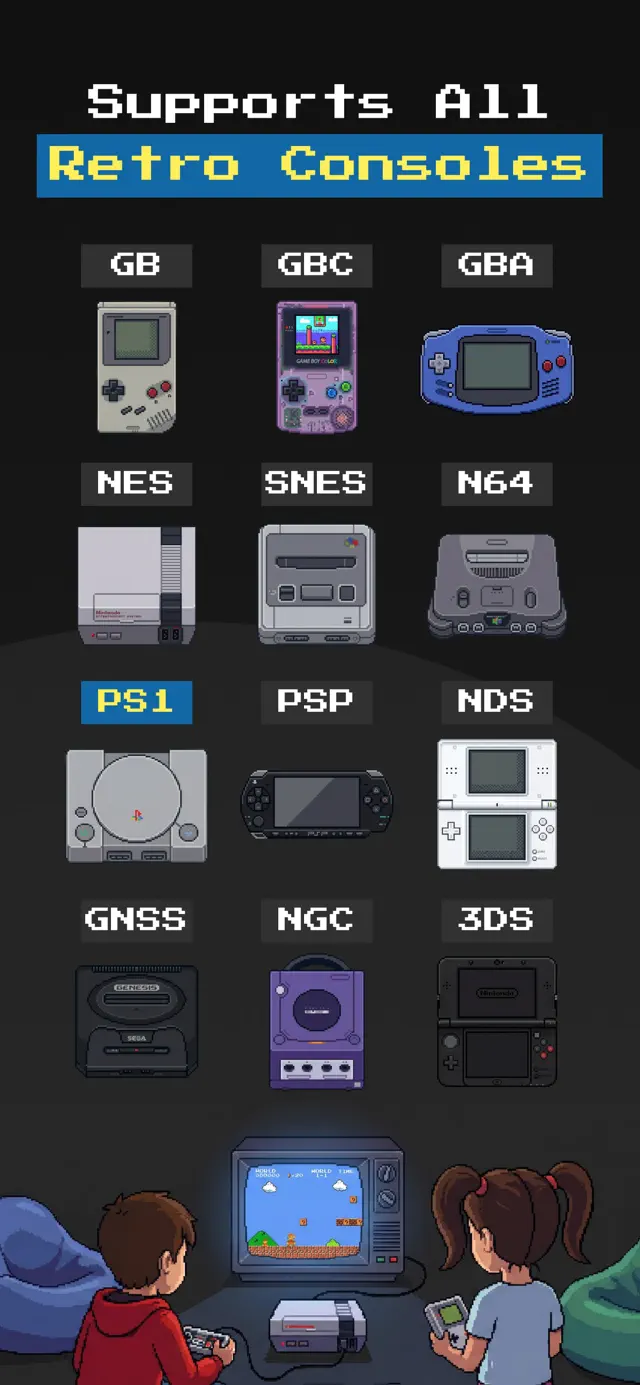
- GamePod Emu — 12 consoles in one app, including GB, GBC, and GBA, wrapped in a retro pixel-art interface with a game library, cover art, and a console switcher. The download is free; some systems and features are unlocked with an optional Pro purchase.
For GBA specifically, all three are capable — Game Boy Advance is a light workload for modern iPhones, so games run at full speed even on older devices. GamePod's advantage is consolidation: your Game Boy, GBC, and GBA collections live next to your SNES, PS1, and DS games instead of being split across apps. It holds a 4.7-star rating from more than 7,300 reviews on the App Store.
Do You Need a Jailbreak to Play GBA Games on iPhone?
No. This is the biggest thing that changed. For over a decade, running a GBA emulator on iPhone without jailbreak meant fragile workarounds — expired enterprise certificates, AltStore re-signing every seven days, or risky configuration profiles. In 2024, Apple updated its App Store guidelines to permit retro game emulators worldwide, and emulators have been ordinary App Store citizens ever since.
That means installation is now a thirty-second job: search the App Store, tap Get, done. Updates arrive automatically, nothing expires, and nothing needs a computer. GamePod Emu requires iOS 18.6 or later, runs on both iPhone and iPad, and weighs in around 161 MB.
Is It Legal to Use a GBA Emulator on iPhone?
The emulator itself is legal — emulation software has been repeatedly upheld in U.S. courts, which is why Apple can host these apps at all. The legal question is about game files, not the app. Making a personal backup of a cartridge you own is generally considered acceptable; downloading copyrighted games you never purchased is infringement in most jurisdictions. GamePod ships with no games whatsoever and never will — you supply your own files. For the full picture, read our guide on whether emulators are legal on iPhone.
Can You Use an Xbox or PlayStation Controller with a GBA Emulator?
Yes. If you want a GBA emulator for iOS with controller support, GamePod pairs with Xbox controllers, DualShock 4, and DualSense over Bluetooth. Connect the pad in iOS Settings once, and GamePod picks it up automatically in-game — no extra mapping required for GBA's simple layout, since the system only used a D-pad, four face and shoulder buttons, and Start/Select.
Touch controls are solid too: GamePod uses per-console controller skins, so the on-screen layout matches the original Game Boy Advance button arrangement, with haptic feedback on presses. But for longer sessions — especially action games and platformers — a physical pad is a genuine upgrade. We cover pairing step by step in our iPhone emulator controller guide.

Does One App Cover Game Boy and Game Boy Color Too?
It does — and this matters more than it sounds. Most people searching for a Game Boy emulator for iPhone actually own games across all three Nintendo handheld generations: the original brick, Game Boy Color carts, and GBA cartridges. GamePod treats each as its own console with its own touch skin, but everything sits in a single library. Flip the console switcher from Game Boy to Game Boy Color to Game Boy Advance and your collection is right there, with cover art pulled in automatically.
The same app also runs NES, SNES, N64, PS1, PSP, Nintendo DS, Sega Genesis, GameCube, and 3DS — twelve systems total. One caveat worth stating plainly: the handhelds and 8/16-bit consoles run effortlessly, but demanding 3D systems like N64, GameCube, and 3DS depend heavily on how recent your iPhone is. GBA is never the bottleneck.
How Do Save States Work for GBA Games?
Save states are the single best reason to emulate rather than dust off original hardware. A save state freezes the entire console — not just your in-game progress — so you can snapshot the exact frame you are on and return to it later. In GamePod, dedicated SAVE and LOAD buttons sit right in the play screen, and auto-save protects you if a call interrupts your session or you swipe the app away mid-level.
Save states work alongside a game's built-in cartridge saves, not instead of them, so your normal in-game save files behave exactly as they did on real hardware. There is also a TURBO button that fast-forwards emulation — ideal for skipping slow dialogue or speeding through repetitive sections of long RPGs.
How to Play GBA Games on iPhone with GamePod
Here is the whole setup, start to finish. The steps are identical if you want a Game Boy Advance emulator on iPad — you just get a bigger screen out of the deal.
- Download GamePod Emu. Get Game Emulator: GamePod Emu free from the App Store (iOS 18.6+, iPhone and iPad).
- Copy your GBA files to the Files app. Move backups of cartridges you legally own onto your device via iCloud Drive, AirDrop, or a cable transfer. Our ROM import guide walks through each method.
- Import your games. Open GamePod, pick Game Boy Advance in the console switcher, tap Import, and select your files. GamePod adds cover art to your library automatically.
- Start playing. Tap a game to launch it with the GBA touch skin, complete with SAVE, LOAD, and TURBO buttons. Everything runs offline — no connection needed.
- Pair a controller (optional). Connect an Xbox, DualShock, or DualSense pad in iOS Settings > Bluetooth, and GamePod detects it the moment you enter a game.
That is genuinely all there is to it. Note that GamePod's free tier lets you download and start playing, while an optional Pro unlock covers some systems and extra features — check the app for current details.