Yes — a Sega Genesis emulator for iPhone is a normal App Store download in 2026. Game Emulator: GamePod Emu is free to install and plays Sega Genesis (known as the Mega Drive outside North America) alongside 11 other consoles. Import a ROM backup of a cartridge you legally own through the Files app, and the game shows up in your library with cover art, save states, a turbo button, and full Bluetooth controller support. No AltStore, no computer required after setup, and everything runs offline.
Can You Play Sega Genesis Games on an iPhone?
You can, and it is far simpler than most of the pages ranking for this question suggest. Apple began allowing retro game emulators on the App Store in 2024, so playing Sega Genesis games on iPhone no longer involves developer certificates, seven-day re-signing, or any of the workarounds older guides still describe. You install an emulator like any other app, add your own game files, and play.
The 16-bit Genesis is also one of the easiest consoles to emulate well. Unlike N64 or GameCube, which are demanding even on recent iPhones, Genesis games run at full speed on essentially any device that meets GamePod's iOS 18.6 requirement. Fast-paced platformers and arcade ports — the genres the console was famous for — feel responsive on both touch controls and a physical pad.
What Is the Best Genesis Emulator for iOS in 2026?
An honest answer names more than one app. RetroArch is free on the App Store and technically the most capable option, but its per-core setup and awkward file handling feel nothing like a native iOS app. Provenance is also free and covers an impressively long system list, with optional paid extras. Both are legitimate choices if you enjoy tinkering.
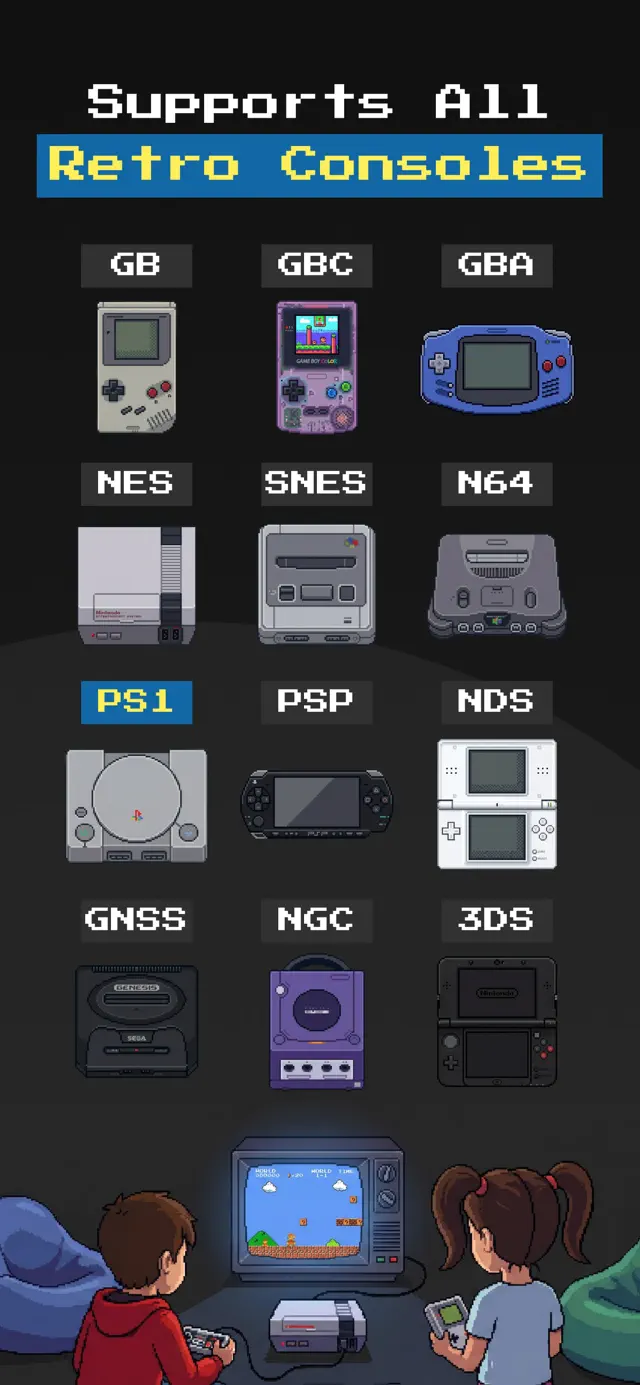
GamePod Emu takes the other path: a Genesis emulator for iOS that works like a normal iPhone app. Import through the Files app, pick your game from a library with cover art, and switch between 12 consoles — Genesis, NES, SNES, N64, Game Boy, GBC, GBA, DS, 3DS, PS1, PSP, and GameCube — from one screen. It is rated 4.7 stars across 7,300+ App Store ratings and translated into 21 languages. The download is free; some consoles and features sit behind an optional Pro upgrade, which is worth knowing before you install.

Does Delta Emulator Support Sega Genesis?
Not in the version you can actually download. As of July 2026, the public App Store build of Delta (v1.7.3) supports Nintendo systems only. Genesis support is feature-complete in the Delta 2.0 beta — but that beta is gated behind the developer's Patreon and distributed through AltStore PAL and TestFlight, not the App Store. The public 2.0 release was targeted for early 2026 and had not shipped as of this writing, so if you search Delta's console list for Sega today, you will come up empty. Delta remains an excellent, genuinely free Nintendo emulator; it just does not solve the Genesis problem yet. For the full breakdown, see our Delta emulator alternative guide.
| Feature | Delta (public App Store build) | GamePod Emu |
|---|---|---|
| Sega Genesis / Mega Drive | Not yet — Patreon-only 2.0 beta as of July 2026 | Included today |
| Systems supported | 7, all Nintendo (NES, SNES, N64, GB, GBC, GBA, DS) | 12, incl. Genesis, PS1, PSP, GameCube, 3DS |
| PS1 / PSP | No — no PS1 core announced | Yes |
| Price | Free, no ads; optional tip IAPs, Patreon for betas | Free download; some systems and features need Pro |
| Controllers | Xbox, PS4/PS5, Switch Pro, Joy-Con, MFi | Xbox, DualShock 4, DualSense |
| App Store rating | 4.8★ (~28,000 ratings) | 4.7★ (7,300+ ratings) |
Genesis or Mega Drive: Does the Region Matter for ROMs?
Same console, two names. Sega sold it as the Mega Drive everywhere except North America, where a trademark conflict forced the Genesis name — so a Mega Drive emulator for iPhone and a Genesis emulator are the same software. What does differ is the region of the original cartridge. Japanese and European releases sometimes carry different titles, and PAL-region games were tuned for 50Hz displays, so a few run slightly slower than their 60Hz NTSC counterparts by design.
For emulation purposes, none of this changes the workflow: back up the cartridge you own, whatever its region, and import the file. Genesis backups typically come as .bin, .md, .gen, or .smd files. The dumped game behaves the way it did on original hardware in that region.
How Do Save States and Turbo Work for Genesis Games?
Genesis games came from the era of password screens and one-sitting playthroughs, which makes save states the single biggest quality-of-life upgrade emulation offers. In GamePod, on-screen SAVE and LOAD buttons snapshot the exact moment you are in — mid-boss, mid-jump, anywhere — and auto-save protects you if a call interrupts your session. Lose a life on a brutal late-game stage and you can reload instantly instead of replaying the whole run.
The TURBO button fast-forwards emulation, which is perfect for grinding in 16-bit RPGs, skipping slow score tallies, or replaying early levels at double speed. Both features work with touch controls or a paired gamepad — our controller setup guide covers pairing in detail.
How to Import Backups of Your Genesis Cartridges Into GamePod
The whole setup takes about ten minutes the first time. GamePod does not include any games, so you supply backups of cartridges you own.
- Install GamePod Emu. Download Game Emulator: GamePod Emu free from the App Store. It requires iOS 18.6 or later on iPhone or iPad.
- Move your Genesis ROM to your device. Copy your backup file into the Files app via iCloud Drive, AirDrop, or a USB cable from your computer. Our ROM import guide walks through each route.
- Import the ROM into GamePod. Open the app, tap import, and select the file. The game appears in your library with cover art, filed under the Sega Genesis tab in the console switcher.
- Pair a controller if you want one. In iOS Settings, connect an Xbox, DualShock 4, or DualSense pad over Bluetooth. GamePod picks it up automatically; touch controls with a Genesis-style skin are always there as a fallback.
- Play, save, and fast-forward. Launch the game, use SAVE and LOAD for instant save states, and hold TURBO whenever the 16-bit pacing tests your patience.